
As your customer base grows or route efficiencies change, you will need to update your delivery schedules. This guide walks you through rearranging, removing, and adding stops to an existing delivery route.
Prerequisites & Details
Requirement: An existing delivery route must already be created.
Menu Navigation: If you normally use the Workflows navigation menu, click Activities in the left menu bar to access administrative settings.
Basic Navigation
Navigation: Activities → Administration → Production → Delivery
Click Delivery Routes.
Locate your target route and click Edit on the right side.
Rearranging Stops
Use drag-and-drop to reorder delivery stops for better route efficiency:
In the action menu above the list of stops, click Sort Stops.
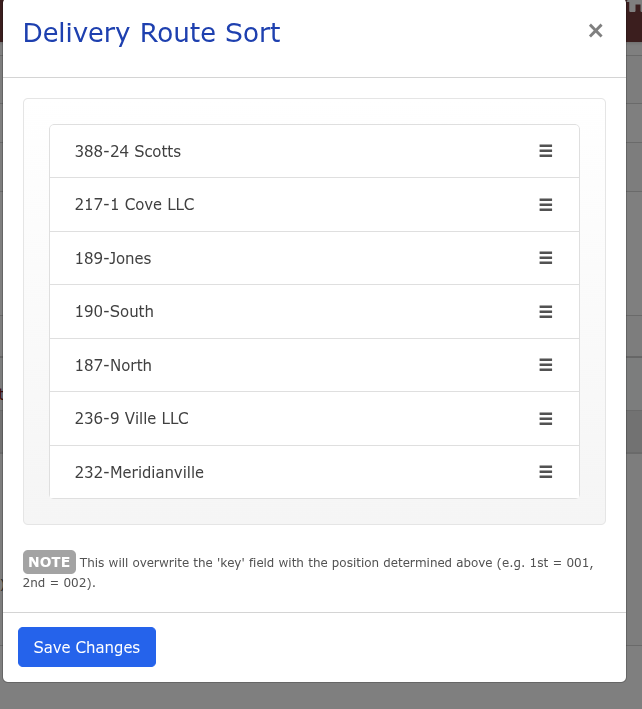
Click and hold the contact name for the stop you want to move, drag it to its new position in the list, and release the mouse button.
Click Save Changes to lock in the new sequence.
Removing a Stop
Adding a Stop
When you add a new stop, it appears at the top of the route list by default. Follow these steps to add and position it correctly:
Verification: Re-open the route's delivery sequence view to confirm all added, moved, or deleted stops reflect correctly in the printed route report.