
If your store is expecting a closure, you can enter a -100% blackout adjustment in advance to prevent orders from generating. If the order has already generated, you will need to enter the adjustment and then delete the order for the date that the store will be closed.
Navigation
- Click Activities>Orders>Adjustments
Entering a blackout adjustment
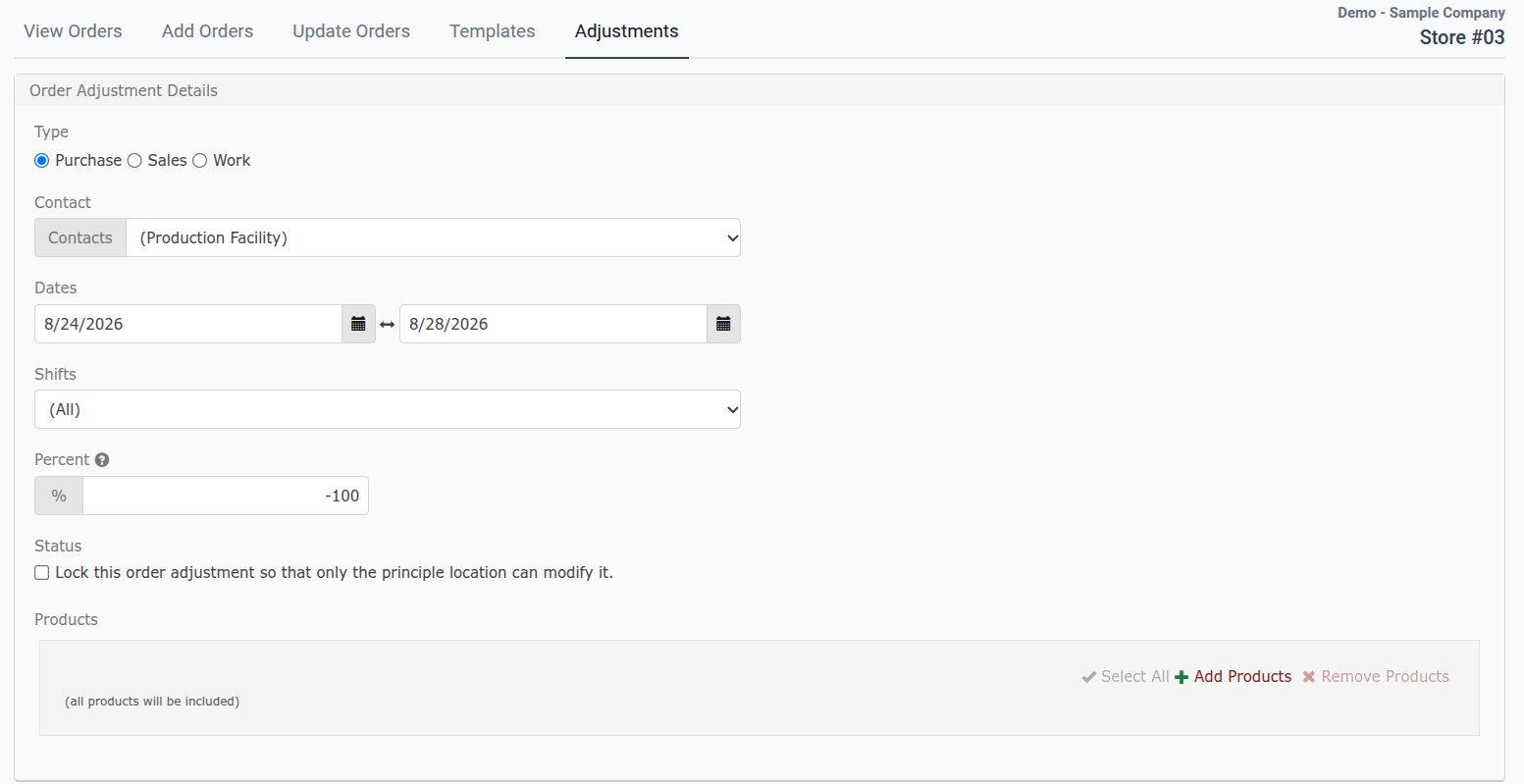
- Choose the Type
- Purchase: orders you buy from a supplier and are delivered to you
- Work: orders you produce in-store
- From the drop-down menu, choose a contact
- Enter the Dates that you will be closed (Note: If the store is closed 8/24 through 8/29, with 8/29 being the opening/delivery date, your Blackout Adjustment should reflect 8/24-8/28. This will allow the order to generate for delivery on 8/29)
- In the Shift drop-down, leave (All) selected
- In the Percent box, enter -100
- Click the Save Changes button at the bottom of the page
Note
- You can leave (All Suppliers) selected, but if you do this, you must also check the Lock Status box.
- If you are closed for one day, the start date and the end date will be the same.
Viewing your blackout adjustment
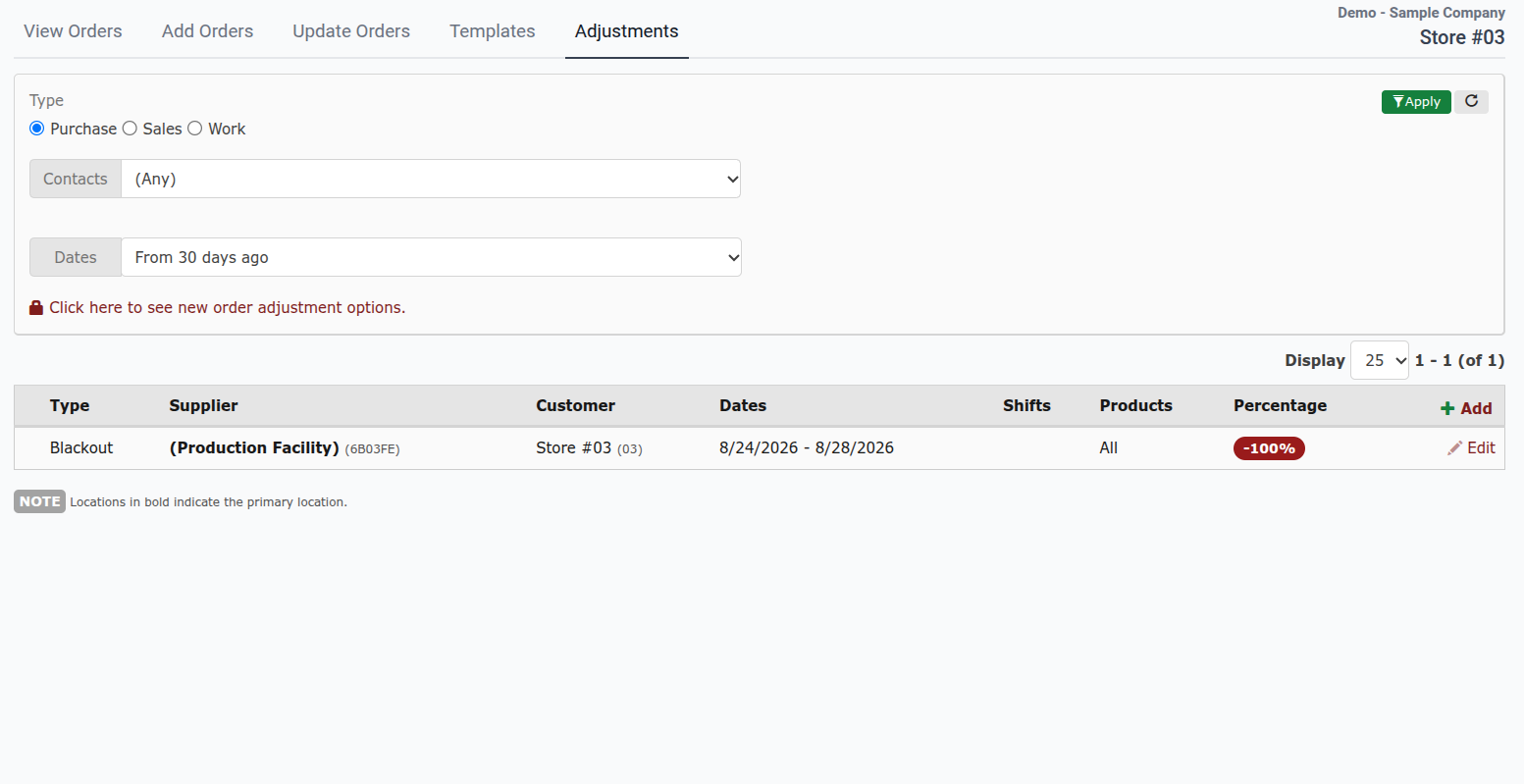
- Click the Adjustments tab
- Be sure the type of adjustment selected matches the type that was just added
- Look in the table to see the adjustment you just created listed as Blackout with a red -100% percentage
Deleting orders already in Supplyit
- In the menu on the left side of the screen, click Orders
- Check the box next to the order(s) for the date(s) that you will be closed
- Click the Delete Selected button at the bottom of the page
- Click OK in the pop-up box